
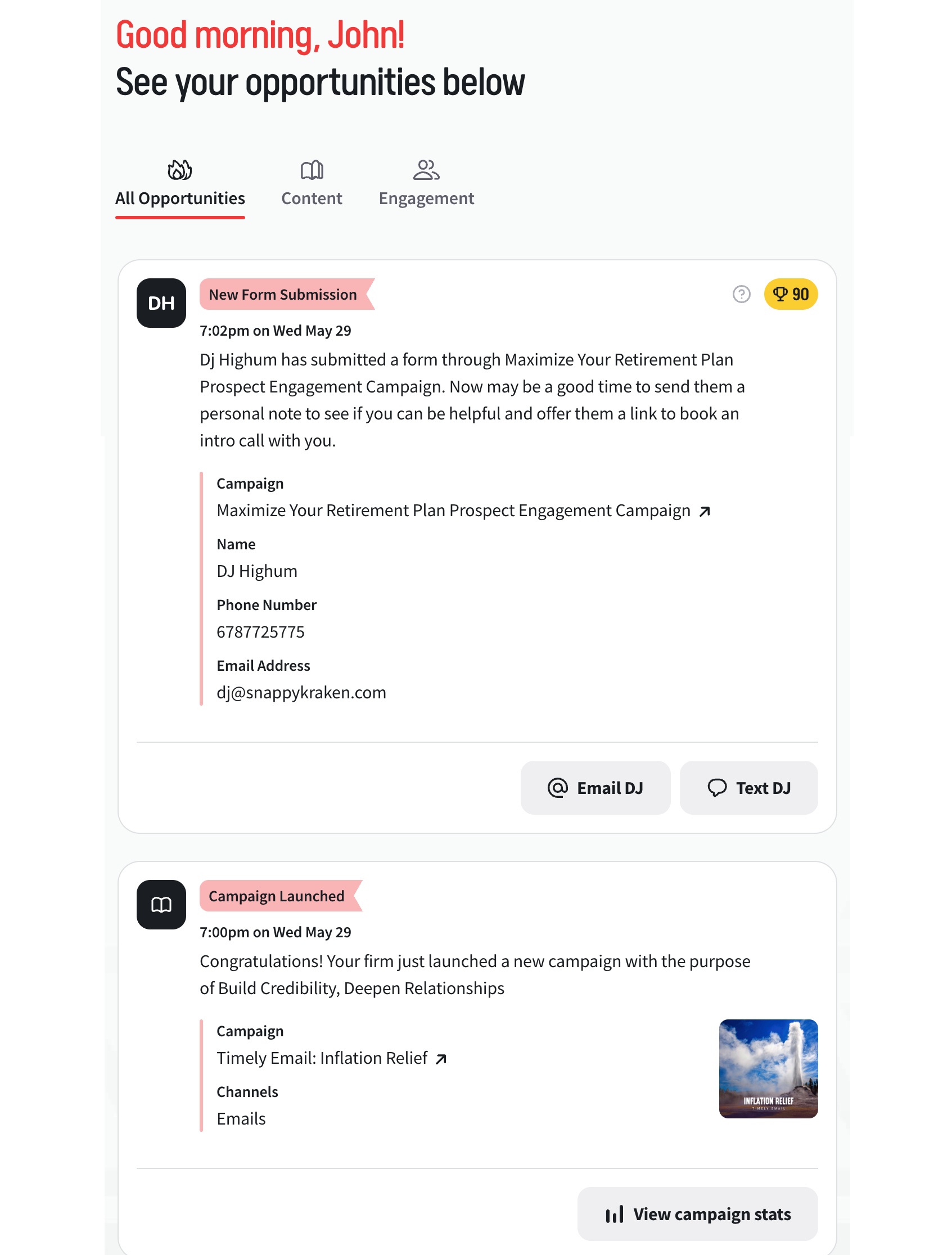
The Opportunity Feed in Marketing Hub gives you real-time visibility of opportunities created by using Snappy Kraken, helping you stay focused on the most impactful recommendations to grow your business. Opportunities appear in chronological order, with pinned opportunities kept at the top after you refresh the page.
Opportunities appear whenever your contacts interact with your content, or when you have launched a new campaign, posted a new blog post, or sent a new text.
Opportunities are clearly labeled with the type, date and time, and a simple description. They also suggest the best follow-up action to take, taking the guesswork out of advisor marketing!
How do I manage opportunity statuses?
Use opportunity statuses to track what you have reviewed, prioritize important opportunities, and organize your Marketing Hub timeline.
- On the Home tab in Marketing Hub, find the opportunity you want to update.
- Open the status dropdown in the upper-right corner of the opportunity card.
- Select Unread, Read, Pinned, or Archived.
- If you select Pinned or Archived, refresh the page for the change to take effect in the timeline.
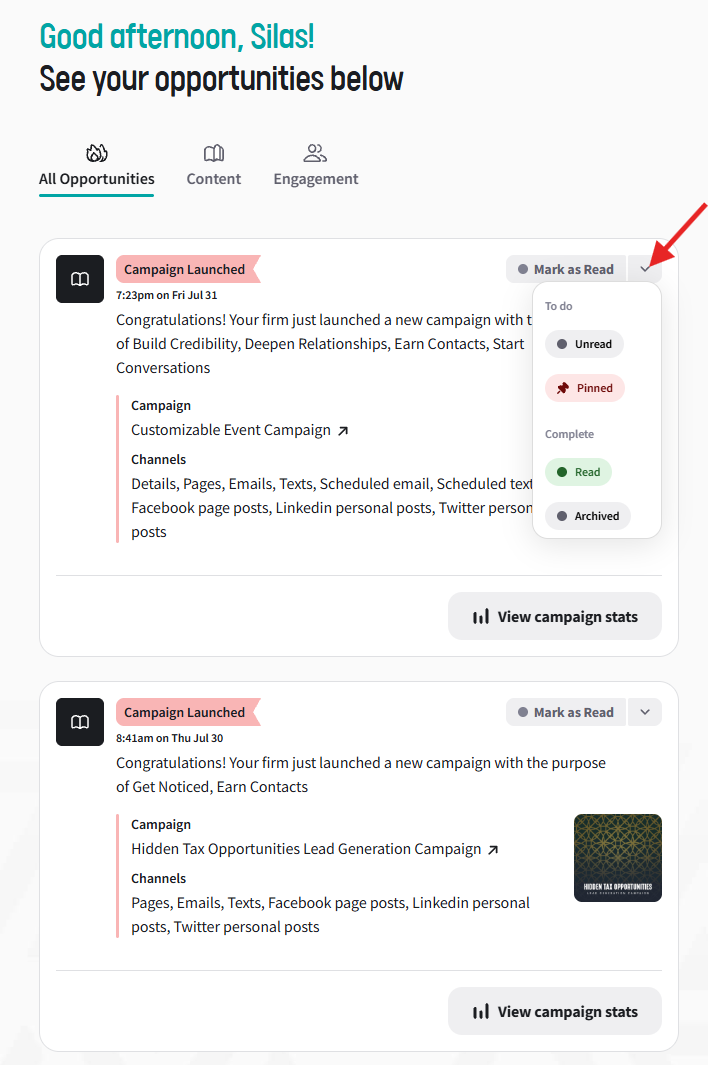
Here's what each status means:
- Unread: All newly created opportunities appear as unread. You can also mark an opportunity as unread to help you track items you want to revisit.
- Read: Mark an opportunity as read to indicate that you have reviewed it. This status helps with organization and does not change the opportunity's functionality.
- Pinned: Keep an important opportunity at the top of your timeline. Refresh the page after pinning it to see it at the top.
- Archived: Remove an opportunity from your feed after the next page refresh. Archiving currently cannot be undone after you refresh the page, so only archive opportunities you no longer need in your feed.
Note: Opportunities that already existed when this feature was introduced were automatically marked as read. New opportunities appear as unread.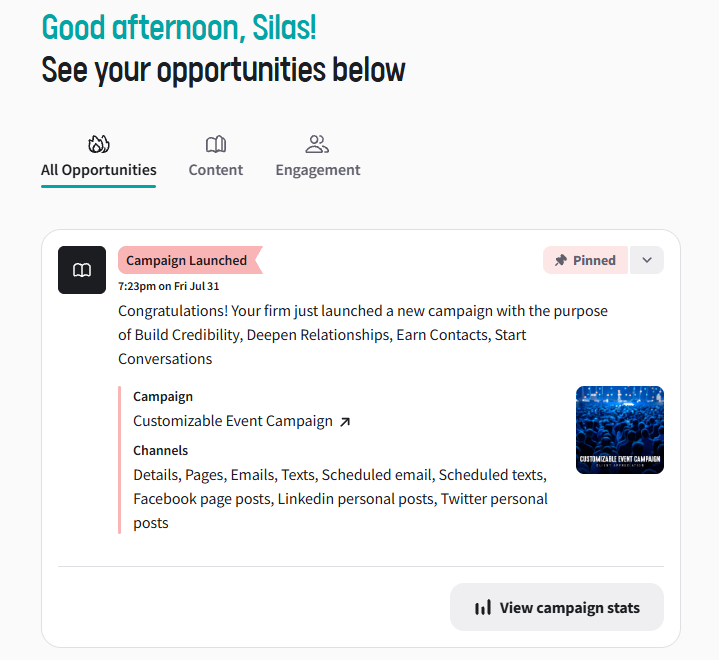
What types of opportunities will I see?
Here's a full list of opportunities you may see:
- New Meeting Request - when a contact or lead requests an appointment through a campaign.
- New Website Lead - when a website user submits a form on your website.
- New Content Request - when a contact fills out a form on a campaign to receive a lead magnet (e.g. guides, e-books, etc.).
- New Newsletter Subscriber - when a contact or lead subscribes to your newsletter campaigns.
- New Form Submission - when a contact or lead submits any other form on one of your campaigns.
- New Convos Opt-in - when a contact opts in to receive text messages from your firm.
- Blog Post Launched - when a new blog post is published on your website.
- New Text Message - when you receive a new text message via Convos.
- Campaign Scheduled - when a campaign is scheduled to launch at your desired date and time. Note that any landing pages or widgets that are part of the campaign are not yet available until the campaign is launched.
- Campaign Rescheduled - when an already scheduled campaign's launch date or time is changed. Note that any landing pages or widgets that are part of the campaign remain unavailable until the campaign is launched.
- Campaign Launched - when a campaign launches. All elements of the campaign become active (e.g. landing pages, widgets, etc.), and the first email is sent out to subscribers.
- Campaign Stopped - anytime a campaign is stopped. This can be when you manually choose to do so or when it automatically stops for technical reasons, such as issues with domain name verifications or email send limits. Campaign steps and elements are no longer available. Stopped campaigns cannot be resumed. You will need to recreate the campaign to avoid email duplication.
- Campaign Paused - when a campaign is manually paused. The campaign will stop sending any subsequent steps. Landing pages and widgets become unavailable.
- Campaign Resumed - when a campaign is manually resumed. The campaign starts sending any steps after the last step it ran.
- Campaign Deleted - when a campaign is removed from the dashboard.
Opportunities are also color-coded according to the products they're activated from. They are displayed in red for Campaigns, yellow for Websites, and gray for Convos.
We suggest checking in on your opportunities throughout the week. Use Unread and Read to track what you've reviewed, Pinned to keep important opportunities easy to find, and Archived to remove opportunities you no longer need in your feed. Opportunities are a growth flywheel - the more you put in, the more you get out!